
How to use mcpjungle as my MCP gateway


I recently updated my private AI workflow. I needed a way to connect my AI agents to my self-hosted services like Mealie and Ghost. In the process, I've found mcpjungle, which now serves as my central MCP hub. Since this works quite nicely, I decided to share my solution with you.
What is MCP again?
The Model Context Protocol (MCP) is an open standard that lets AI assistants interact with external tools and APIs. Without a gateway like mcpjungle, you would need to configure each AI-to-service connection individually, creating maintenance overhead and security complexity.
Why not just connect directly?
While you could connect each AI client directly to each MCP server, this quickly becomes messy. You'd need to manage authentication for each connection, handle multiple ports, and deal with network complexity. For my private services running on a single VPS and some home raspberry pi, I like to keep things simple.
Infrastructure for my MCP setup in a nutshell
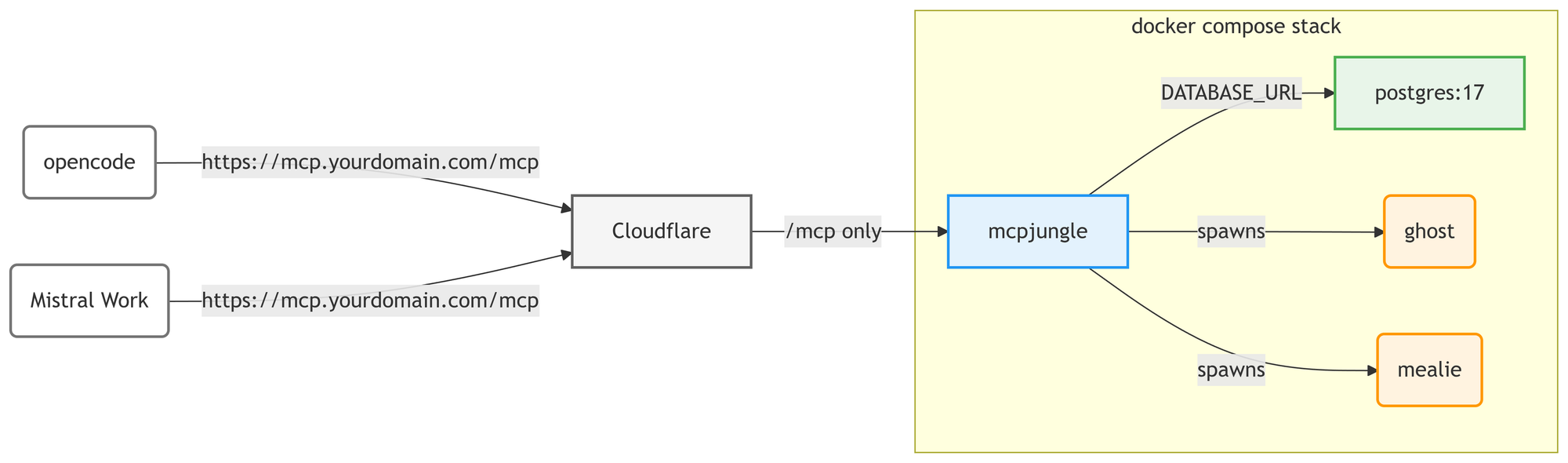
Foremost, let's talk about the infrastructure itself. All my MCP services are managed through a single mcpjungle gateway container. This container spawns stdio servers for Mealie (recipe management) and Ghost (blog management), and registers MCP clients like OpenCode. A Postgres container provides the backing store.
The key advantage here is that mcpjungle takes stdio-based MCP servers, which normally only work locally, and makes them available over the network through its unified endpoint.
Cloudflare sits in front as a reverse proxy, exposing only the /mcp endpoint to the internet. All other endpoints — management, health checks etc. remain internally and reducing attack surface.
My Workflow with mcpjungle
So mcpjungle sparked my interest, as it allows you to have a single gateway that manages multiple MCP servers and clients. Also as I mentioned above stdio MCPs especially. Putting the heavy lifting directly on the server and providing a single endpoint for all AI clients.
This has quite a few benefits:
- Single entry point for all MCP services
- Centralized authentication and access control
- Simplified client configuration
- Easy to add new servers or clients
Luckily, mcpjungle comes with a distrib image, which besides the service, also contains the necessary runtimes. This can be used as a base and is actually quite well-made. However, I prefer rolling my own, so I will also share that below.
Docker Compose Setup
I prefer having a container with batteries included, without the need to mount scripts locally. This allows easy versioning and fits in quite well with my current Continuous Delivery setup.
However, for the sake of simplicity, the docker-compose file below has the build integrated into the compose file.
services:
  mcpjungle:
    build:
      context: .
    container_name: mcpjungle
    depends_on:
      db:
        condition: service_healthy
    environment:
      DATABASE_URL: postgres://mcpjungle:mcpjungle@db:5432/mcpjungle
      SERVER_MODE: ${SERVER_MODE:-enterprise}
      OTEL_ENABLED: ${OTEL_ENABLED:-true}
      MCP_SERVER_INIT_REQ_TIMEOUT_SEC: ${MCP_SERVER_INIT_REQ_TIMEOUT_SEC:-10}
      MEALIE_BASE_URL: ${MEALIE_BASE_URL}
      MEALIE_API_KEY: ${MEALIE_API_KEY}
      GHOST_API_URL: ${GHOST_API_URL}
      GHOST_ADMIN_API_KEY: ${GHOST_ADMIN_API_KEY}
      OPENCODE_MCP_TOKEN: ${OPENCODE_MCP_TOKEN}
      MISTRAL_MCP_TOKEN: ${MISTRAL_MCP_TOKEN}
    ports:
      # Ideally dont expose it directly
      - 8080:8080
    volumes:
      - mcpjungle_root:/root
      - ./servers:/etc/mcpjungle/servers
      - ./clients:/etc/mcpjungle/clients

  db:
    image: postgres:17
    container_name: mcpjungle-db
    environment:
      POSTGRES_USER: mcpjungle
      POSTGRES_PASSWORD: mcpjungle
      POSTGRES_DB: mcpjungle
    volumes:
      - db_data:/var/lib/postgresql/data
    healthcheck:
      test: ["CMD-SHELL", "PGPASSWORD=mcpjungle pg_isready -U mcpjungle"]
      interval: 10s
      timeout: 5s
      retries: 5
    restart: unless-stopped

volumes:
  db_data: {}
  mcpjungle_root:
This has a few things to note:
- Environment variables need to be stored securely
- The
/mcpconnection must be allowed through the proxy
I mitigated some of this already with Cloudflare, limiting the exposed endpoint as much as possible. But after all, an exposed gateway is mighty, especially as it needs to access the MCP servers, where you probably already lost the battle if someone got access.
Building a custom image
I ended up with the following Dockerfile, building all the things in that I need and using Wolfi as base:
FROM curlimages/curl AS dl
WORKDIR /download
ARG TARGETARCH
ARG mcpjungle_version="0.4.5"
RUN [ "${TARGETARCH}" = "arm64" ] && ARCH="arm64" || ARCH="x86_64"; \
    curl -fsSL "https://github.com/mcpjungle/MCPJungle/releases/download/${mcpjungle_version}/mcpjungle_Linux_${ARCH}.tar.gz" \
    -o mcpjungle_linux.tar.gz
RUN tar -xvzf mcpjungle_linux.tar.gz

FROM cgr.dev/chainguard/wolfi-base
RUN apk add --no-cache \
    nodejs-26 \
    npm \
    curl \
    gettext
RUN apk add --no-cache \
    python-3.14 \
    uv
COPY --from=dl /download/mcpjungle /bin/mcpjungle
COPY entrypoint.sh /entrypoint.sh
RUN chmod +x /entrypoint.sh \
    && mkdir -p /etc/mcpjungle/servers /etc/mcpjungle/clients

ENTRYPOINT ["/entrypoint.sh"]
CMD ["mcpjungle", "start"]
The first build stage downloads a pinned version of mcpjungle. To allow the MCPs to use the necessary runtimes, Node 26 and Python 3.14 are installed. The runtime image makes sure the necessary directories exist for server and client configs.
Server and Client Configs
The gateway needs configs to know what servers to spawn and which clients can access them. By default, mcpjungle relies on the CLI to configure clients and servers, which I would rather automate via config files. While there is a Web UI for configuration in dev mode that is not suitable to expose to the internet.
Scripting time
I will go step by step through the entry point script and provide the full version at the end of the section in case you also want to use it.

First we just need some fancy output and we can start with the actual implementation:
# @description Output to stderr for mcpjungle
# @stderr Message
output() {
    echo "$@" >&2
}

# @description Print spacer between sections
# @stderr Spacer output
print_spacer() {
  output " "
}

# @description Print heading for a logical section
# @stderr Heading for the section
print_section() {
  local heading; heading="$1"
  local heading_length; heading_length=${#heading}
  local pad_count_end; pad_count_end=$((30-heading_length))
  output "$(printf '=%.0s' {1..5}) $(printf "%-10s" "${heading}") $(printf '=%.0s' $(seq "${pad_count_end}"))"
}
The main flow
The entry point script starts the gateway, waits for it to be ready, initializes the server, and registers all servers and clients:
#!/bin/sh
set -e

print_section "Starting mcpjungle"
mcpjungle start &
pid=$!
for i in $(seq 1 30); do
  if curl -s -o /dev/null http://127.0.0.1:8080 >/dev/null 2>&1; then
    break
  fi
  sleep 1
done

print_section "Initializing"
if mcpjungle init-server 2>&1; then
  output "All done!"
else
  output "Server already initialized."
fi

print_spacer

tmpdir=$(mktemp -d)
if [ -d /etc/mcpjungle/servers ]; then
  for f in /etc/mcpjungle/servers/*.json; do
    [ -f "$f" ] || continue
    out="$tmpdir/$(basename "$f")"
    envsubst < "$f" > "$out"
    name=$(grep -o '"name"[[:space:]]*:[[:space:]]*"[^"]*"' "$out" | head -1 | cut -d'"' -f4)
    [ -n "$name" ] || name=$(basename "$f" .json)
    print_section "Registering server ${name}"
    mcpjungle deregister "$name" 2>/dev/null || true
    mcpjungle register -c "$out" 2>&1
    print_spacer
  done
fi

if [ -d /etc/mcpjungle/clients ]; then
  for f in /etc/mcpjungle/clients/*.json; do
    [ -f "$f" ] || continue
    out="$tmpdir/$(basename "$f")"
    envsubst < "$f" > "$out"
    name=$(grep -o '"name"[[:space:]]*:[[:space:]]*"[^"]*"' "$out" | head -1 | cut -d'"' -f4)
    [ -n "$name" ] || name=$(basename "$f" .json)
    print_section "Creating client ${name}"
    mcpjungle delete mcp-client "$name" 2>/dev/null || true
    mcpjungle create mcp-client --conf "$out" 2>&1
    print_spacer
  done
fi

rm -rf "$tmpdir"

kill $pid 2>/dev/null
wait $pid 2>/dev/null

exec mcpjungle start
MCP-Server sample with Mealie
The gateway requires server configs to know what to spawn. Here's a practical example for Mealie.
{
  "name": "mealie",
  "transport": "stdio",
  "description": "Mealie MCP server - recipe management",
  "command": "npx",
  "args": ["mealie-mcp-server"],
  "env": {
    "MEALIE_BASE_URL": "${MEALIE_BASE_URL}",
    "MEALIE_API_KEY": "${MEALIE_API_KEY}"
  }
}
servers/mealie.json
Client sample for Mistral
Clients define who can access which servers. This is the config for my Mistral Work integration. It allows access to all servers, since I can configure the level of auto invocation of tool calls directly in the Mistral Vibe UI.
{
  "name": "mistral-work",
  "description": "Mistral Work Connector",
  "allowed_servers": ["*"],
  "access_token": "${MISTRAL_MCP_TOKEN}"
}
client/mistral.json
So many possibilities
You can not only use this for connecting AI agents on the web to MCP servers, but for any other automation tasks involving LLMs. I would not recommend using it for enterprise though, where I would rather rely on either an immutable host or some Infrastructure as Code tool like Ansible to handle this. Also static authentication is likely not going to cut it here.

It is quite stable and effortless to extend with custom scripts. I have used it for all my MCP deployments for a few weeks now. It works like a charm and is pretty solid, while not taking up more than a few MB of RAM for the service. It provides a single, secure endpoint for all my MCP services.
Registering it
In OpenCode
OpenCode connects through a simple JSON configuration file that can live in your home folder or in the project root.
{
  "$schema": "https://opencode.ai/config.json",
  "mcp": {
    "mcpjungle": {
      "type": "remote",
      "url": "https://mcp.yourdomain.com/mcp",
      "headers": {
        "Authorization": "Bearer {env:OPENCODE_MCP_TOKEN}"
      },
      "enabled": true
    }
  }
}
opencode.json
Mistral Work
You can utilize the MCP with the Vibe Work functionality, it smoothly integrates into conversations.
- Head to https://chat.mistral.ai/
- Switch to the
Worktab - Click on
Context > Connectors - Click
Add connector - Select the tab
Custom MCP connector - Enter a title, public server URL
- Once it detects it add the access token
After configuring the connector, you can use all MCPs provided by mcpjungle in your conversations.
Conclusion
mcpjungle has streamlined my AI workflow significantly. By centralizing all MCP services behind a single, secure endpoint, I eliminated connection complexity while maintaining control. The setup is lightweight, stable, and easy to extend. If you are running multiple self-hosted services and want your AI to access them cleanly, this approach is worth trying. s